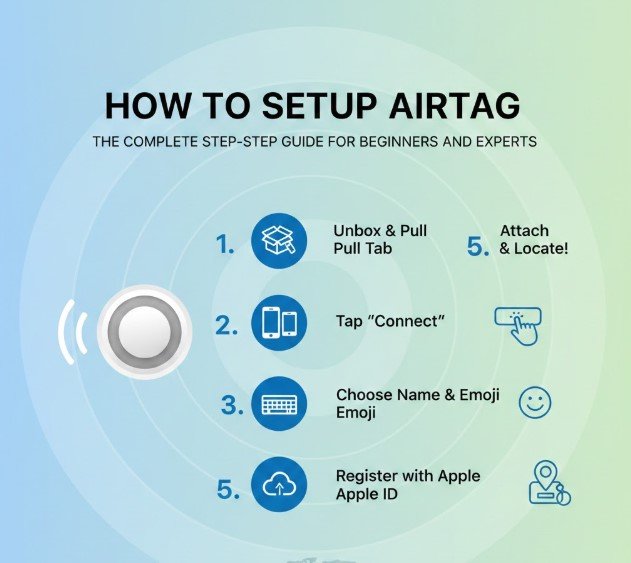
If you’ve recently purchased an Apple AirTag and are wondering how to setup AirTag properly, you’re in the right place. Apple designed AirTag to make finding lost items—keys, bags, wallets, luggage—fast and effortless using the vast Find My network. However, to get the full benefit of this powerful Bluetooth tracker, correct setup and configuration are essential.
Since its launch in 2021, AirTag has become one of the most popular item trackers globally. Powered by Bluetooth technology, Ultra Wideband (UWB) precision tracking (in compatible devices), and end-to-end encryption, AirTag works seamlessly within Apple’s ecosystem. According to Apple, the Find My network leverages hundreds of millions of Apple devices worldwide to anonymously locate lost items.
How to Setup AirTag on iPhone: Complete Walkthrough
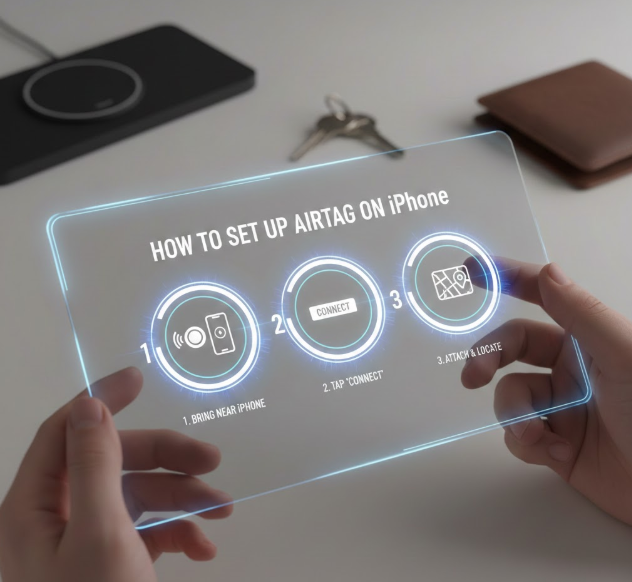
Setting up an AirTag on an iPhone is designed to be intuitive. However, understanding the underlying steps ensures smooth activation and avoids common mistakes.
• Check Device Compatibility and iOS Version
Before learning how to setup AirTag on iPhone, confirm compatibility. AirTag requires iPhone SE (2nd generation or later) or iPhone 6s and newer running iOS 14.5 or later. For Precision Finding, devices must support Ultra Wideband technology (iPhone 11 or later).
Updating to the latest iOS version improves performance and security. Navigate to Settings > General > Software Update to confirm your device is current. Keeping software updated ensures compatibility with Apple’s Find My network enhancements and privacy improvements.
• Enable Bluetooth, Wi-Fi, and Location Services
AirTag relies on Bluetooth to connect and the Find My network to report location. Ensure Bluetooth is turned on in Settings > Bluetooth. Also enable Wi-Fi or cellular data for network communication.
Location Services must be active under Settings > Privacy & Security > Location Services. Without this permission, AirTag cannot accurately report its location.
• Remove Battery Tab and Activate AirTag
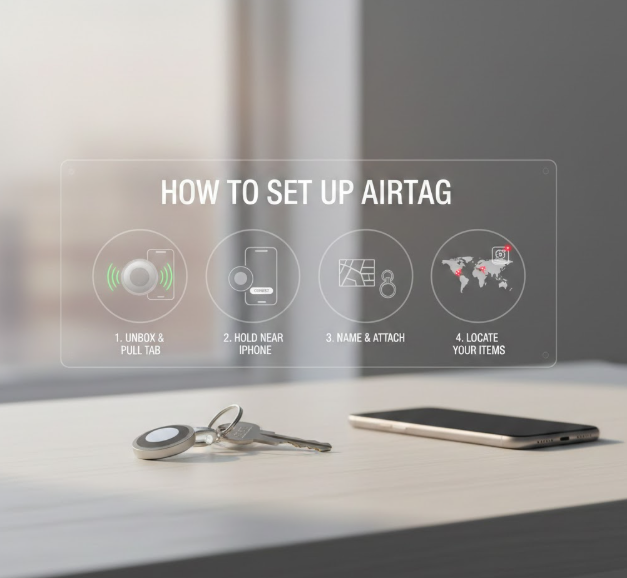
When you unbox your AirTag, pull out the plastic battery tab. You’ll hear a chime, indicating activation. This confirms the CR2032 battery is properly connected.
Bring the AirTag close to your iPhone. A setup animation should automatically appear on screen, similar to pairing AirPods.
• Connect Through Find My App
Tap “Connect” when prompted. Choose a name from Apple’s list (Keys, Backpack, Wallet) or create a custom name. Assigning a recognizable label improves tracking clarity.
Your AirTag will now link to your Apple ID and register in the Find My app.
• Customize Notifications and Safety Settings
After setup, you can enable “Notify When Left Behind” alerts. This feature sends notifications if you leave your item behind at unfamiliar locations.
Adjust these in the Find My app under the AirTag’s settings.
• Test Precision Finding
If using iPhone 11 or newer, tap “Find” within the app. Precision Finding uses Ultra Wideband to show directional arrows and distance.
This feature enhances the user experience dramatically compared to traditional Bluetooth trackers.
Also Read:- How to Make Pasta: The Complete Step-by-Step Homemade Guide
How to Setup AirTag on iPad: Step-by-Step Guide
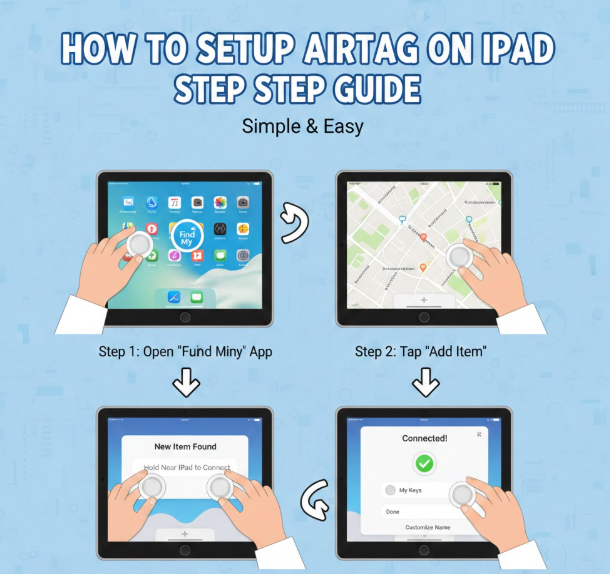
Many users ask how to setup AirTag on iPad instead of iPhone. The process is nearly identical, with minor differences.
• Confirm iPadOS Compatibility
Your iPad must run iPadOS 14.5 or later. Older versions may not support automatic pairing.
Update via Settings > General > Software Update before starting setup.
• Ensure Apple ID Sign-In
AirTag connects to your Apple ID account. Confirm you are signed in under Settings > [Your Name].
Without proper account login, pairing will fail.
• Activate the AirTag
Remove the battery tab to power on the device. Bring it close to your iPad. The pairing animation should appear.
If not, manually open the Find My app and select “Add Item.”
• Assign Item Name and Emoji
Apple allows you to personalize the AirTag with an emoji. This visual indicator helps quickly identify items in the Find My app.
• Adjust Item Safety Alerts
Configure separation alerts to receive notifications when the AirTag disconnects beyond Bluetooth range.
• Confirm Location Accuracy
Test location accuracy within the Find My app to ensure correct activation.
Also Read:- How to Hem Pants: The Complete 2026 Guide for Beginners and Experts
How to Setup AirTag on Android: What You Need to Know
AirTag is designed for Apple’s ecosystem, but Android users can interact in limited ways.
• Understand Compatibility Limitations
You cannot fully setup AirTag on Android. AirTag requires an Apple ID and iOS device for activation.
• Use Tracker Detect App
Apple offers a “Tracker Detect” app on Google Play that allows Android users to scan for unknown AirTags nearby.
• NFC-Based Identification
If you find a lost AirTag, tap it against an NFC-enabled Android phone. It will open a webpage showing owner contact details (if enabled).
• Privacy Alerts
Android devices can detect unknown trackers after prolonged movement with you.
• Consider Alternatives
Android users may prefer alternatives like Tile or Samsung SmartTag.
• Best Practice Recommendation
For full functionality, an Apple device is required.
Also Read:- How to Fill Out a Check: The Complete 2026 Step-by-Step Guide
How to Setup AirTag Again After Reset
If you’re selling, gifting, or troubleshooting, you may need to setup AirTag again.
• Remove from Apple ID
Open Find My, select AirTag, scroll down, and tap “Remove Item.” This disconnects it from your Apple ID.
• Remove and Reinsert Battery Five Times
To factory reset, remove and reinsert the CR2032 battery five times until you hear a sound on the fifth insertion.
• Confirm Reset Tone
The reset tone indicates AirTag is ready for new pairing.
• Bring Near New Device
Hold the AirTag close to the new iPhone or iPad to initiate pairing again.
• Assign New Apple ID
Follow setup steps as previously described.
• Test Functionality
Confirm tracking works properly in the Find My app.
Also Read:- How to Make Ice Cream: The Ultimate Guide for Beginners & Experts
Privacy, Security, and Anti-Stalking Protections
Apple implemented robust safety measures within AirTag.
• End-to-End Encryption
Location data is encrypted and anonymous within the Find My network.
• Anti-Stalking Alerts
Unknown AirTags traveling with you trigger notifications.
• Audible Alerts
Separated AirTags emit sound after extended time away from owner.
• Android Detection
Android users can detect unknown AirTags.
• Disable When Necessary
Remove battery if misuse is suspected.
• Follow Legal Guidelines
Always use AirTag ethically and lawfully.
Also Read:- How to Make Tea: The Complete Guide for Beginners and Connoisseurs
Troubleshooting Common Setup Issues
• AirTag Not Connecting
Ensure Bluetooth and Wi-Fi are active.
• Setup Animation Not Appearing
Restart device and open Find My manually.
• Battery Issues
Replace CR2032 battery.
• Apple ID Error
Sign out and back into iCloud.
• Firmware Updates
AirTag firmware updates automatically when near iPhone.
• Contact Apple Support
Visit official Apple support page if persistent issues occur.
Also Read:- How to Cut Your Own Hair: A Complete Guide for Beginners
Conclusion
Understanding how to setup AirTag ensures you maximize its tracking power, security features, and seamless integration with Apple devices. From pairing with your iPhone or iPad to resetting and troubleshooting, correct setup is straightforward when following structured steps.
AirTag stands out due to its integration with the Find My network, precision tracking capabilities, and privacy-first design. By following this guide, you can confidently configure, manage, and protect your items with ease.
FAQs
How long does AirTag battery last?
Approximately one year with a replaceable CR2032 battery.
Can I share AirTag with family members?
Yes, via Family Sharing in iOS 17+.
Why won’t my AirTag connect?
Check Bluetooth, location services, and Apple ID login.
Can Android fully setup AirTag?
No, full setup requires an Apple device.
How do I reset AirTag?
Remove battery five times until reset tone plays.
For More Visit Alaikas.com