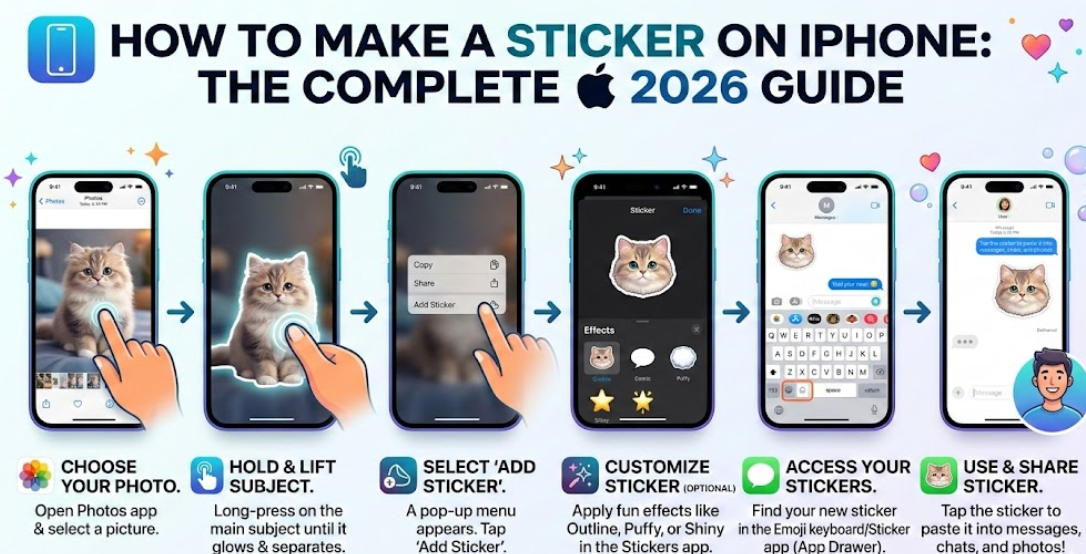
If you’ve been searching for how to make a sticker on iPhone, you’re in the right place. With recent iOS updates, Apple has made it incredibly simple to turn your favorite photos, screenshots, and even Live Photos into personalized stickers you can use in Messages, WhatsApp, Instagram, and other apps.
Modern iPhones powered by iOS 17 introduced enhanced sticker tools inside Apple Photos and Apple Messages, allowing users to extract subjects from images and convert them into custom stickers with just a few taps. This feature uses on-device machine learning to detect objects, remove backgrounds, and create high-quality cutouts instantly.
In this in-depth guide, you’ll learn:
- How to create stickers from photos
- How to make stickers from screenshots
- How to use Live Photos for animated stickers
- How to make moving stickers
- Troubleshooting tips and expert advice
- Best practices for creative and professional-looking designs
Let’s explore everything you need to know.
Understanding iPhone Sticker Creation:
Before diving into step-by-step instructions, it’s important to understand how Apple’s sticker feature functions. Sticker creation relies on Visual Look Up technology, which uses artificial intelligence to identify the main subject in an image and separate it from the background.
When you long-press on a subject in a photo, your iPhone automatically isolates it. You can then add it to your sticker drawer for use across messaging apps.
Key Features Behind iPhone Stickers
• AI-powered subject detection
Apple uses machine learning models to detect people, pets, objects, and even food. The detection works locally on your device, meaning your images remain private and secure.
• Background removal without third-party apps
You no longer need Photoshop or external apps. The built-in feature instantly removes backgrounds, making sticker creation accessible to everyone.
• Cross-app compatibility
Stickers created on iPhone work inside iMessage, WhatsApp, Instagram DMs, and more, ensuring versatility across platforms.
• Live Photo animation support
If you use Live Photos, your stickers can move, adding expressive animation to conversations.
• Custom effects and outlines
You can add effects like Outline, Comic, Puffy, and Shiny to enhance sticker aesthetics.
• Automatic iCloud syncing
Stickers sync across Apple devices when signed into the same Apple ID.
Also Read:- How to Draw a Car: The Complete Step-by-Step Drawing Guide for Beginners and Kids
How to Make a Sticker on iPhone from Photo
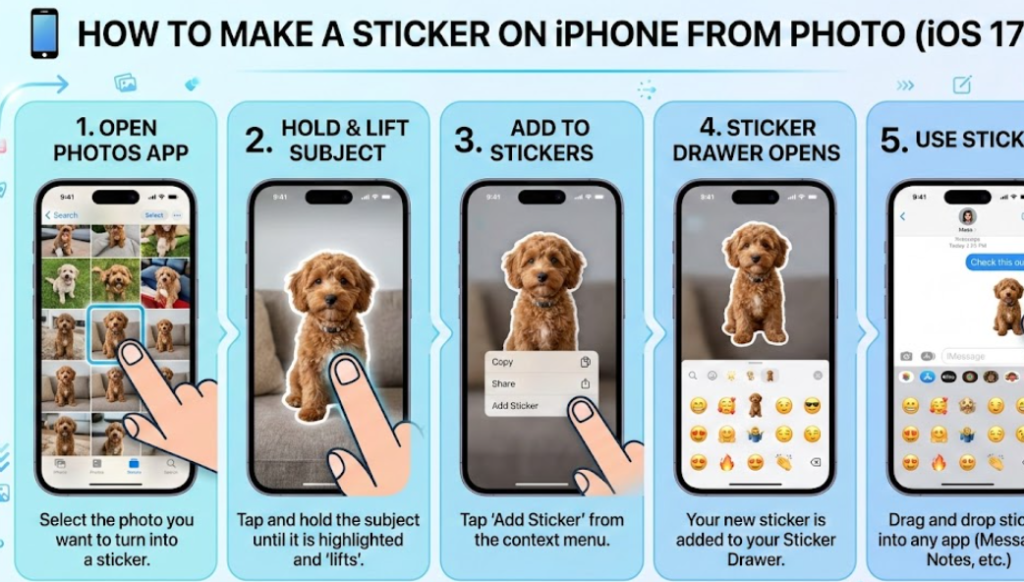
Learning how to make a sticker on iPhone from photo is the most common method users search for.
This process works best with clear images where the subject stands out from the background. Portrait photos, pet images, and product shots produce excellent results.
Step-by-Step Guide to Creating a Sticker from a Photo
• Open the Photos app and choose a clear image
Launch the Apple Photos app and select a high-quality photo with a clearly defined subject. Good lighting and strong contrast improve AI detection accuracy significantly.
• Long-press on the subject
Press and hold on the main object or person in the photo. After a brief moment, the subject will glow, indicating it has been isolated from the background.
• Tap “Add Sticker” option
Once the cutout appears, select “Add Sticker.” This saves it to your sticker drawer for future use in Messages and supported apps.
• Customize the sticker with effects
You can tap the sticker to add effects like Puffy, Outline, Comic, or Shiny. These effects enhance visual appeal and make your sticker stand out.
• Access sticker drawer in Messages
Open a conversation in Messages, tap the “+” icon, then select Stickers to insert your newly created design.
• Test across apps for compatibility
Share the sticker in different messaging platforms to ensure compatibility and adjust if necessary.
Also Read:-How to Cook White Rice: The Complete Step-by-Step Guide for Perfect Results
How to Make a Sticker on iPhone from Screenshot
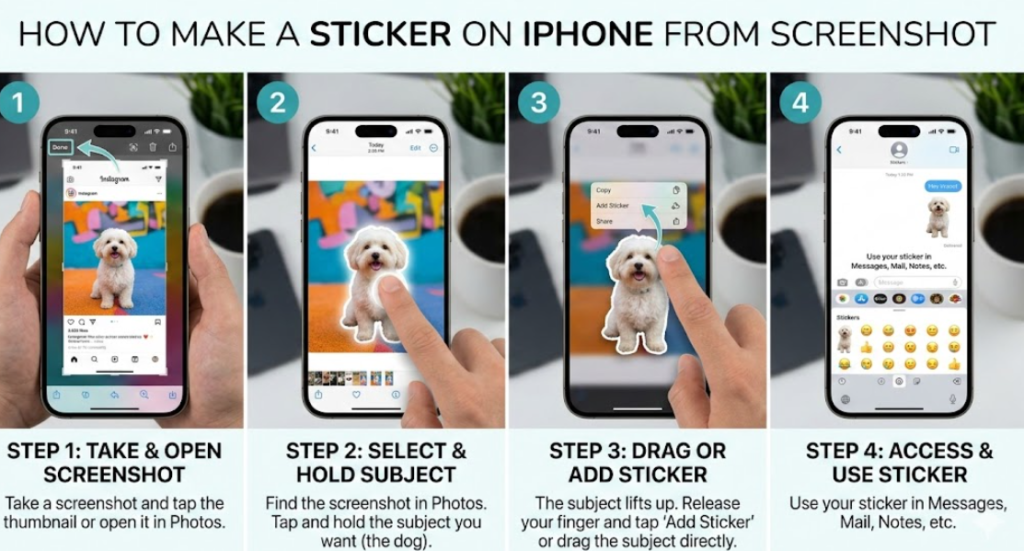
Sometimes you want to turn memes, tweets, or funny moments into stickers. Learning how to make a sticker on iPhone from screenshot expands creative possibilities.
Screenshots may require cropping before sticker extraction because they include interface elements.
Creating Stickers from Screenshots
• Capture a clean screenshot
Press the side button and volume up simultaneously to capture a screenshot. Ensure minimal clutter for best results.
• Crop unnecessary UI elements
Open the screenshot and crop out status bars or irrelevant sections to improve subject detection accuracy.
• Long-press to isolate the subject
Use the same subject detection method as with photos. The AI identifies the main element.
• Add to sticker library
Tap “Add Sticker” to store it in your collection.
• Edit for clarity and focus
If detection isn’t precise, manually adjust cropping before reattempting.
• Respect copyright guidelines
Avoid distributing copyrighted content commercially without permission.
Also Read:-How to Rent a Car: Comprehensive Guide for Modern Travelers
How to Make a Sticker on iPhone Live Photo
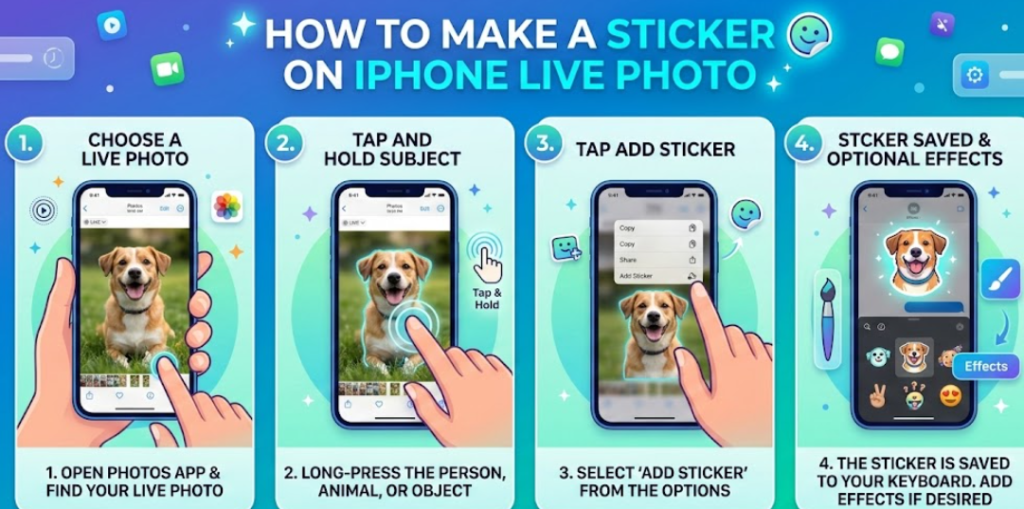
One of the most exciting features is creating animated stickers from Live Photos.
Live Photos capture short motion clips alongside still images, making them perfect for expressive stickers.
Steps for Creating Live Photo Stickers
• Select a Live Photo from your gallery
Open a Live Photo—these are identified by the “Live” icon in the top corner.
• Ensure Live mode remains enabled
Do not disable Live effect before creating the sticker.
• Long-press the moving subject
The AI extracts the subject and preserves animation.
• Tap Add Sticker
Once added, the animation remains intact in supported apps.
• Use inside iMessage for best results
iMessage fully supports animated stickers.
• Test performance on different apps
Some third-party apps may convert animation into static images.
Also Read:- How to Make Slime: The Ultimate DIY Slime Guide for Beginners and Experts
How to Make a Sticker on iPhone That Moves
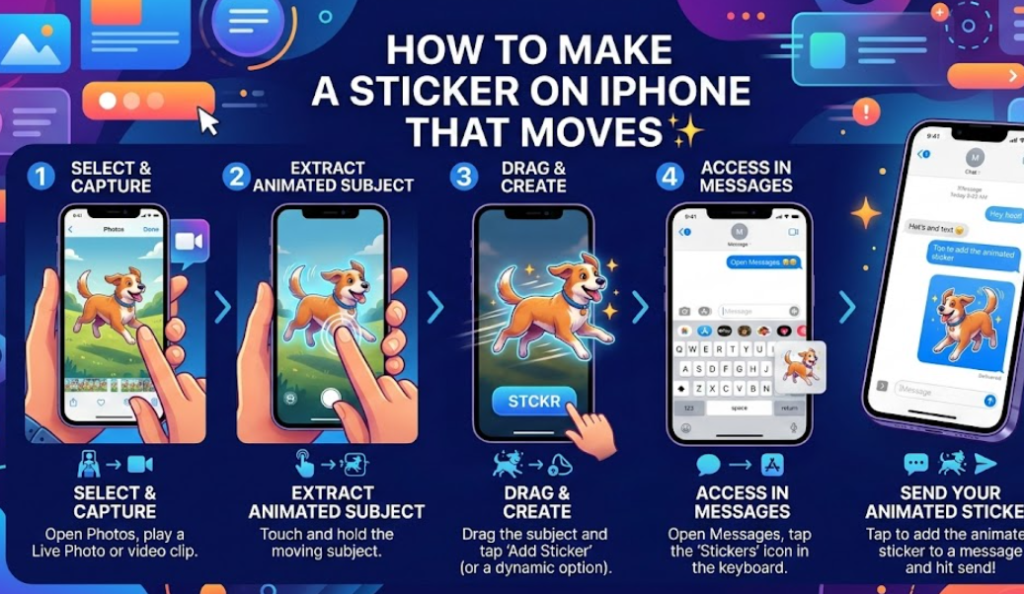
If you want to create dynamic, moving stickers, you’ll rely on Live Photos or GIF-style animations.
Creating Moving Stickers on iPhone
• Use Live Photos intentionally
Capture Live Photos with clear motion for engaging sticker animation.
• Convert Live Photo into sticker directly
Long-press the subject and add as sticker to preserve movement.
• Apply effects for enhanced motion feel
Some effects amplify the visual impact of animated stickers.
• Check compatibility before sharing
Ensure the receiving app supports animated sticker playback.
• Use third-party apps for GIF customization (optional)
Apps like GIPHY can add further animation layers.
• Maintain file size efficiency
Large animated files may compress during sharing, affecting quality.
Also Read:- How to Strip Paint from Wood: The Complete Expert Guide for Safe, Effective Results
Troubleshooting Common Sticker Issues
• Sticker not detecting subject properly
Choose clearer images with high contrast and minimal background clutter.
• Sticker appears blurry
Use high-resolution photos for best results.
• Animation not working
Ensure Live Photo feature was active during capture.
• Sticker not syncing across devices
Check iCloud settings and ensure same Apple ID login.
• Option not visible
Update to the latest iOS version.
• App compatibility issues
Not all apps support animated stickers equally.
Also Read:- How to Strengthen Wrists: The Complete Expert Guide to Power, Stability, and Injury Prevention
Conclusion: Mastering How to Make a Sticker on iPhone
Now that you understand how to make a sticker on iPhone, you can transform everyday photos, screenshots, and Live Photos into creative digital expressions. Whether you’re making static stickers from portraits or animated stickers that move, the built-in iOS tools make the process seamless and intuitive.
By following best practices—using clear images, maintaining Live Photo functionality, and testing across apps—you ensure high-quality results every time.
Sticker creation on iPhone blends creativity, technology, and convenience into one powerful feature. With regular practice, you’ll master personalized digital communication in no time.
Frequently Asked Questions
1. Do I need a special app to make stickers on iPhone?
No, iOS 17 and newer versions include built-in sticker creation tools.
2. Can I delete a sticker later?
Yes, open your sticker drawer, long-press the sticker, and select delete.
3. Why won’t my sticker move?
It must be created from a Live Photo to remain animated.
4. Are stickers saved permanently?
They remain saved unless manually deleted.
For More Visit Alaikas.com