Paramount Plus is a popular streaming service offering movies, TV shows, live sports, and exclusive content. However, circumstances change, and users may need to know how to cancel Paramount Plus for various reasons, such as cost management, dissatisfaction, or switching platforms. Cancelling Paramount Plus requires understanding the platform where the subscription was purchased, whether through Amazon, Roku, directly via Paramount, or through a free trial.
This guide provides step-by-step instructions on cancelling Paramount Plus across all platforms, with practical tips, examples, and actionable insights. By following these steps, you can ensure your subscription is cancelled correctly, avoid unexpected charges, and manage your streaming preferences efficiently.
How to Cancel Paramount Plus on Amazon
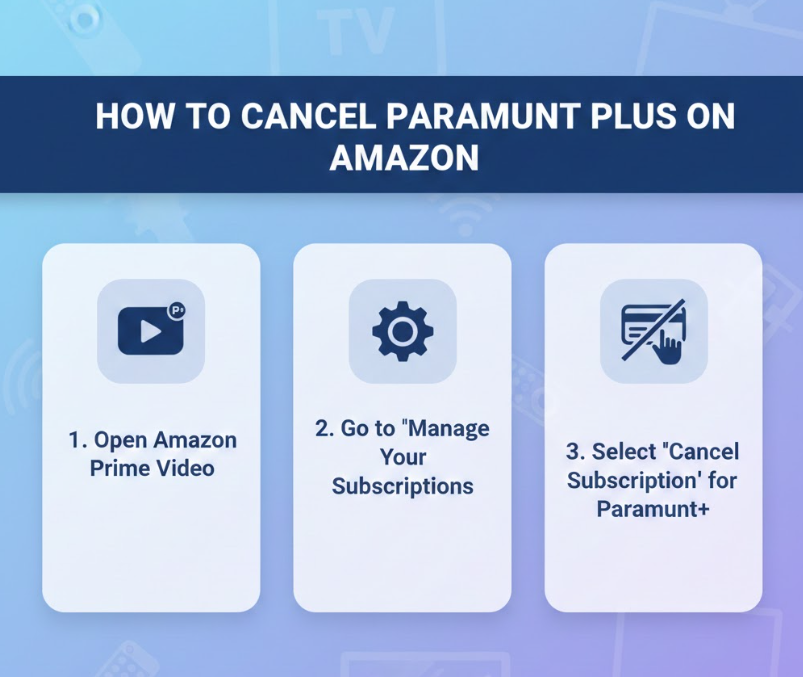
If you subscribed to Paramount Plus via Amazon, the cancellation process is slightly different than doing it directly on Paramount’s website. Amazon manages subscriptions independently, and stopping your subscription requires navigating your Amazon account settings.
Key Points Explained
• Accessing Amazon account settings
Open the Amazon website or app, go to “Accounts & Lists,” and select “Memberships & Subscriptions.” This is where Amazon manages all digital subscriptions linked to your account. Correctly accessing this menu is crucial to ensure you cancel the right service.
• Locating Paramount Plus subscription
Scroll through your subscriptions and find Paramount Plus. Subscriptions are listed alphabetically or by most recent. Selecting the correct subscription prevents accidental cancellation of other services.
• Choosing cancel subscription option
Click “Manage Subscription” and then “Cancel Subscription.” Amazon may ask you to confirm your decision or provide a reason for cancellation. Confirming ensures the subscription will not auto-renew.
• Understanding billing cycles
Amazon subscriptions are billed monthly or annually depending on your plan. Canceling does not refund the current billing period, but your access continues until the end of the cycle.
• Confirming cancellation
Amazon sends a confirmation email once the cancellation is successful. Check your email to verify the subscription status and note the end date for access.
• Reactivate if needed
If you change your mind, Amazon allows reactivation before the end of the billing period. Understanding this flexibility ensures you don’t lose access unnecessarily.
Also Read:- How to Change Your Name on Facebook: Complete Guide
How to Cancel Paramount Plus on Roku
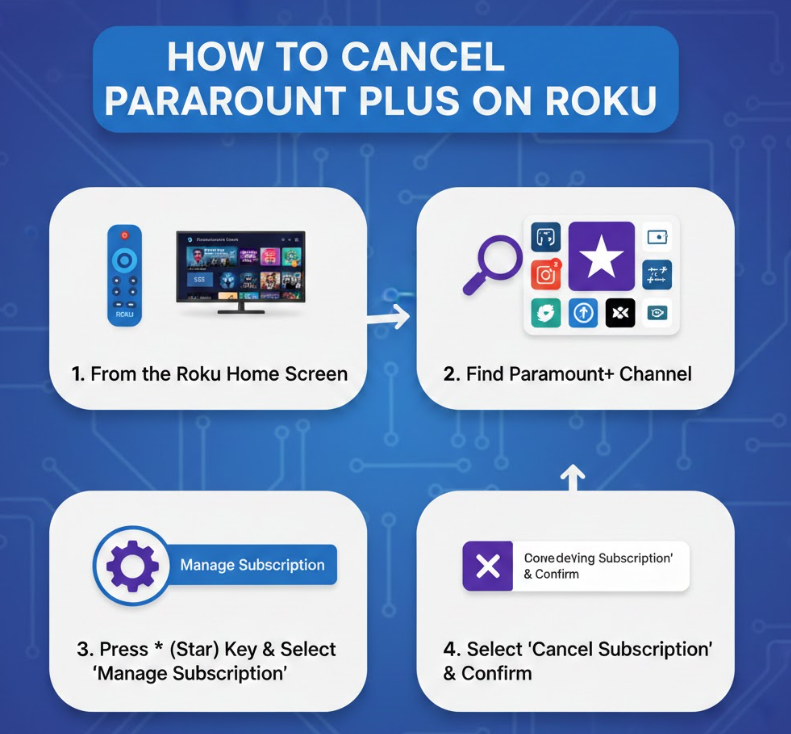
Roku users who subscribed to Paramount Plus through the Roku Channel or app store have a distinct cancellation process. It is vital to manage subscriptions directly through Roku to avoid being charged unnecessarily.
Key Points Explained
• Accessing Roku account
Go to Roku’s website or Roku device, and sign in to your account. Roku manages all subscriptions independently of Paramount Plus. Correct login ensures you reach the right subscription management area.
• Navigating to Manage Subscriptions
On the Roku account page, select “Manage Subscriptions.” This section lists all active subscriptions tied to your Roku account, including Paramount Plus.
• Selecting Paramount Plus subscription
Locate Paramount Plus and click “Unsubscribe.” This option initiates the cancellation process and stops auto-renewal at the end of the current billing period.
• Confirming cancellation
Roku may ask for confirmation or feedback. Confirming ensures the subscription is deactivated, preventing further charges.
• Billing cycle awareness
Subscriptions on Roku remain active until the end of the paid period. Cancelling does not immediately revoke access; you retain content access until the billing period concludes.
• Reactivate if needed
You can resubscribe to Paramount Plus anytime through Roku. Understanding this feature provides flexibility if you want to return to the service later.
Also Read:- How to Make Overnight Oats: A Complete Beginner-to-Expert Guide
How to Cancel Paramount Plus Subscription
Cancelling a Paramount Plus subscription directly through the official website or app is the most common method. This process is straightforward, but knowing the correct steps ensures your subscription is cancelled without unexpected charges.
Key Points Explained
• Logging into your Paramount Plus account
Open the Paramount Plus website or app, sign in, and access “Account Settings.” Proper login credentials are required to manage your subscription effectively.
• Navigating to billing section
Once in “Account Settings,” select “Billing Information” or “Subscription.” This section contains all subscription details, including renewal dates and payment methods.
• Selecting cancel subscription option
Click “Cancel Subscription” or “Cancel Membership.” Paramount Plus may ask you to provide a reason for cancelling or offer alternative subscription options.
• Understanding billing implications
Cancellation stops future payments but does not refund the current billing period. Users retain access until the end of the paid cycle, which should be noted to avoid confusion.
• Confirmation of cancellation
After cancellation, you receive an email confirming the end date and deactivation. Keep this confirmation as proof of cancellation for reference.
• Reactivating the subscription
Paramount Plus allows reactivation if you change your mind. You can log back into your account, select a plan, and resume service immediately.
Also Read:- How to Hang a Picture: A Complete Guide for Perfect Wall Art
How to Cancel Paramount Plus Free Trial

Many users start Paramount Plus with a free trial. Cancelling a free trial requires acting before the trial period ends; otherwise, the account converts to a paid subscription automatically.
Key Points Explained
• Identifying the trial period
Check the start and end date of your free trial in your account settings. Knowing the exact end date is crucial to avoid being charged for a full subscription.
• Accessing account settings
Sign in to Paramount Plus, navigate to “Account Settings” or “Subscription.” The management interface allows you to cancel before the trial converts to a paid plan.
• Cancelling before trial ends
Click “Cancel Free Trial” or “Cancel Membership.” Paramount Plus confirms that cancellation occurs before billing, preventing charges.
• Confirmation of free trial cancellation
You receive an email confirming your free trial cancellation. Verify this email to ensure your account will not be charged at the trial end.
• Billing cycle awareness
Free trials typically last 7-14 days. Cancelling ensures no payment is collected when the trial concludes.
• Reactivating after cancellation
If you wish to try the service later, you can restart the free trial if eligible or subscribe directly. Understanding this flexibility allows future use without risk.
Also Read:- How to Pickle Red Onions: The Complete Guide
Conclusion
Knowing how to cancel Paramount Plus ensures you avoid unwanted charges, manage your subscriptions efficiently, and retain control over your streaming services. Whether you subscribed via Amazon, Roku, directly on Paramount, or signed up for a free trial, following the proper steps guarantees cancellation is completed successfully. Always confirm cancellation via email and monitor your billing cycle to ensure no accidental charges occur.
Proper understanding of these steps allows users to make informed decisions, switch streaming platforms, or pause subscriptions without stress.
FAQs
Can I cancel Paramount Plus at any time?
Yes, you can cancel anytime, but access continues until the end of the billing period.
Will I lose access immediately after cancellation?
No, access continues until the end of the current paid period or free trial.
How do I cancel Paramount Plus on Amazon or Roku?
Amazon and Roku manage subscriptions separately. Cancel through their respective account or device menus.
Do I get a refund if I cancel early?
No, refunds are not typically issued for partially used months, but you retain access until the period ends.
Can I reactivate Paramount Plus after cancellation?
Yes, you can resume your subscription anytime via your account on any platform.
For More Visit Alaikas.com