Facebook is one of the most widely used social media platforms globally, connecting over 2.9 billion active users. Users often wish to update their display names due to personal changes, marriage, branding, or privacy concerns. Knowing how to change your name on Facebook ensures your profile accurately represents your identity while complying with Facebook’s naming policies.
Facebook allows users to update their names through various devices and interfaces, including iPhone, Android app, desktop, and mobile browsers. While the process is simple, Facebook enforces guidelines for acceptable names to maintain authenticity. Additionally, changing a business page name requires a slightly different approach, often involving page roles and admin permissions.
This comprehensive guide covers changing your Facebook name on iPhone, using the Facebook app, updating business page names, and changing names on mobile browsers. Each section provides step-by-step instructions, best practices, and tips to prevent errors or account restrictions. By following this guide, users can seamlessly update their Facebook identity while preserving their profile integrity and ensuring smooth interactions with friends and followers.
How to Change Your Name on Facebook on iPhone
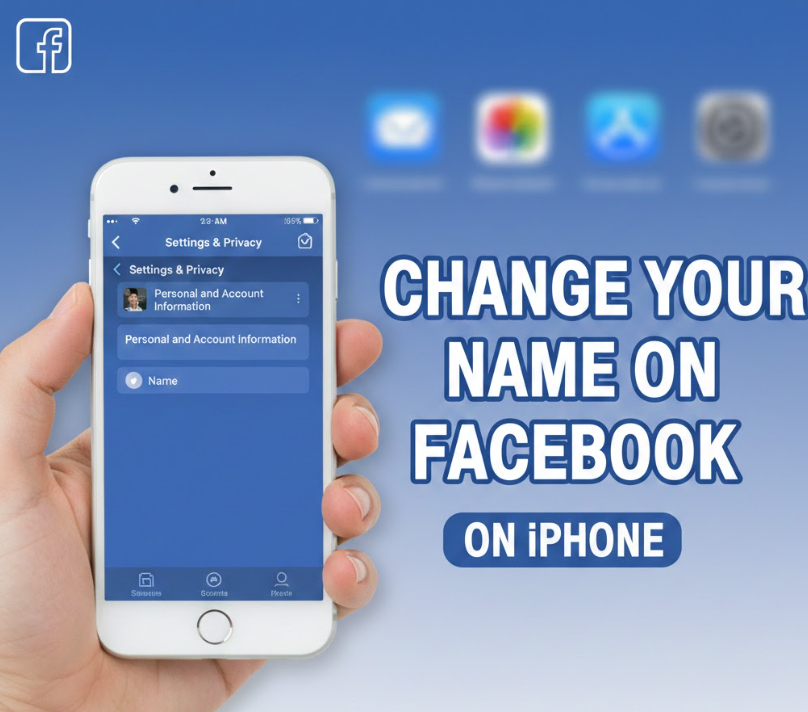
Updating your Facebook name on an iPhone is convenient, especially for users who primarily access the platform via the iOS app. iPhone users can manage personal information, including names, using Facebook’s mobile interface with a few simple steps.
Ensuring compliance with Facebook’s name standards—avoiding special characters, unusual capitalization, or titles—is essential to prevent rejection of your name change request. iPhone users benefit from an intuitive interface that allows quick edits, instant previews, and verification before submission.
Steps to Change Name on iPhone
. Open the Facebook app and log in
Access your profile using your Facebook credentials. Using a secure login ensures that all changes apply to the correct account and prevents unauthorized modifications.
. Navigate to “Settings & Privacy”
Tap the menu icon, then select “Settings & Privacy” followed by “Settings.” This section controls personal information, including name changes.
. Select “Personal Information” → “Name”
Within Personal Information, tap “Name” to edit your first, middle, or last name. Facebook provides field-specific guidance to comply with naming rules.
. Enter your new name
Type the desired name accurately. Ensure proper capitalization and spelling to avoid delays or rejections due to policy violations.
. Preview and confirm
Facebook shows a preview of how your new name will appear on your profile. Review carefully to ensure it meets expectations and policy guidelines.
. Save changes and wait for approval
Submit the name change. Facebook may take up to 24 hours to approve changes, and you cannot change your name again for 60 days after approval.
Also Read:- How to Make Overnight Oats: A Complete Beginner-to-Expert Guide
How to Change Your Name on Facebook App
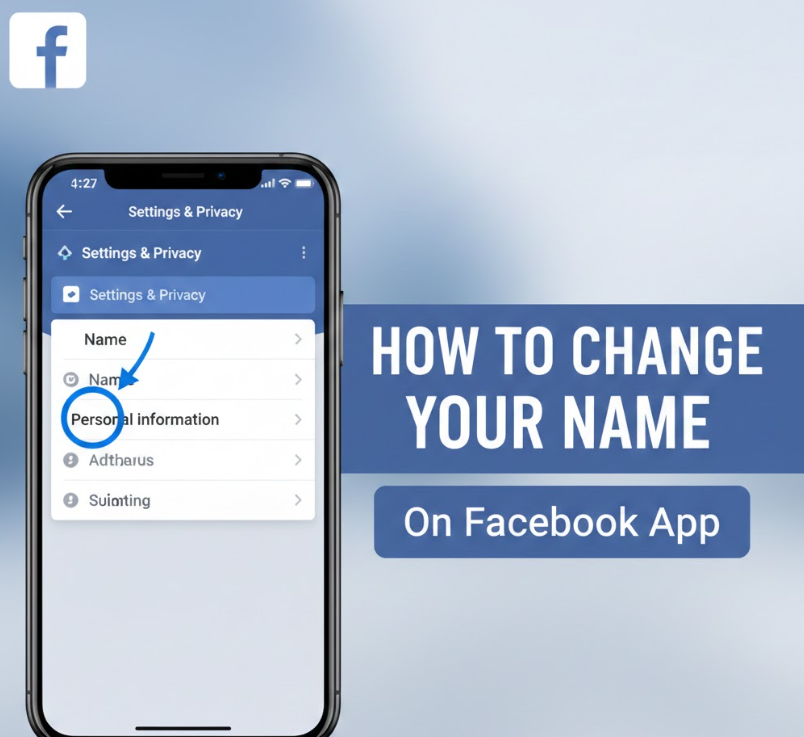
The Facebook app, available for both iOS and Android, provides full account management tools, including name changes. Users who rely on mobile apps benefit from a direct, user-friendly interface without needing desktop access.
The process involves navigating through the account settings, updating personal information, and following Facebook’s verification rules. Knowing these steps ensures users avoid common errors that might delay or block their name change request.
Steps to Change Name on Facebook App
. Open the Facebook app and access the menu
Tap the hamburger menu (three lines) to open settings options. Correct menu navigation is crucial to access the “Personal Information” section.
. Go to “Settings & Privacy” → “Settings”
Select Settings to view account management options. This section includes privacy, security, and personal information controls.
. Tap on “Personal Information” → “Name”
Select the “Name” field to edit first, middle, and last names. Following this path ensures you are updating the correct fields.
. Enter the new name
Input the desired name, following Facebook’s name guidelines. Avoid symbols, unusual capitalization, or multiple languages that violate rules.
. Preview the new name
Facebook shows a preview of the updated name on your profile. Confirm that it is displayed correctly and matches your intended presentation.
. Save changes and monitor approval
Submit the change and wait for Facebook’s verification. Your account will reflect the new name once approved, typically within 24 hours.
Also Read:- How to Hang a Picture: A Complete Guide for Perfect Wall Art
How to Change Your Name on Facebook Business Page
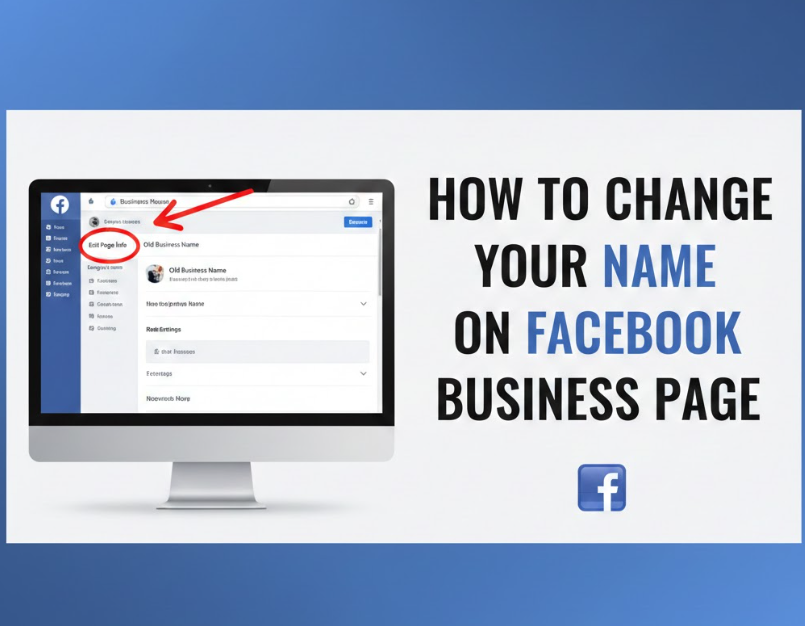
Changing the name of a Facebook business page differs from personal accounts. Admin permissions, branding considerations, and Facebook’s review process play critical roles in successful updates.
Properly managing your page name ensures that followers recognize your brand while maintaining credibility. Business page name changes are often subject to verification, particularly if the new name significantly alters the brand identity or keywords.
Steps to Change Name on Business Page
. Access your Facebook page as an admin
Log in to your personal account and navigate to the business page where you have admin rights. Only admins can update the page name.
. Click “Edit Page Info”
Located in the page management menu, this option allows modifications to the page’s basic information, including the name.
. Locate the “Name” field
Click on the name field to edit the business page name. Ensure the new name accurately reflects your brand or business identity.
. Enter the new business name
Type the updated name carefully, considering branding consistency, searchability, and recognition among followers.
. Submit for review
Facebook reviews all business page name changes to ensure compliance with naming standards. This review process can take a few days.
. Monitor page notifications
Facebook will notify you whether the name change is approved or rejected. If rejected, review the reason and resubmit with appropriate adjustments.
Also Read:- How to Pickle Red Onions: The Complete Guide
How to Change Your Name on Facebook Mobile
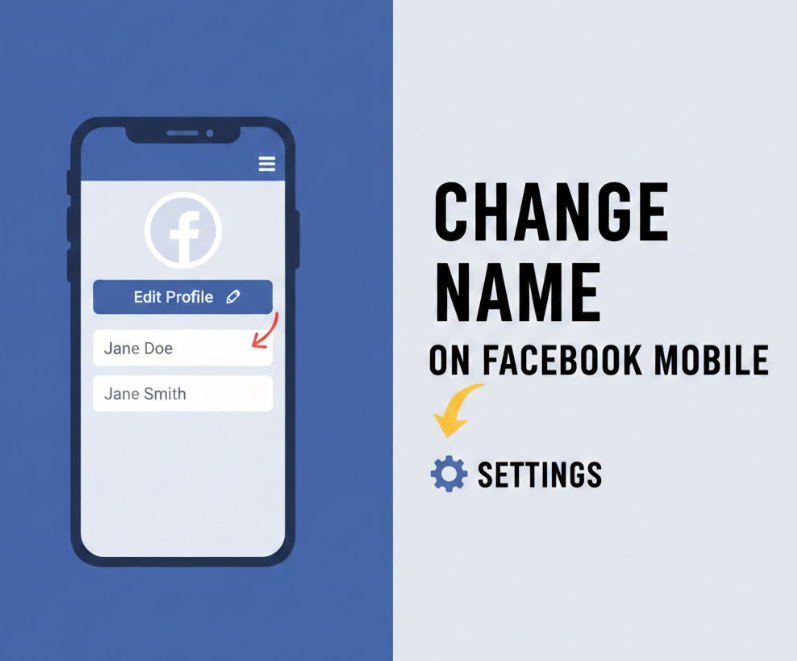
Mobile browsers allow users to manage their Facebook accounts without the app. Updating your name via a mobile browser is particularly useful for users with limited storage or who prefer not to install the app.
Mobile browser users follow a similar process to the app interface, navigating settings menus and ensuring name compliance with Facebook’s policies. Understanding these steps ensures smooth name changes without device-specific limitations.
Steps to Change Name on Mobile Browser
. Open a mobile browser and visit Facebook
Navigate to facebook.com and log in securely. Using a trusted browser ensures the account remains safe while making changes.
. Access menu → Settings & Privacy → Settings
Click the menu icon to navigate to Settings. Mobile browser layouts may vary, but the “Settings & Privacy” pathway remains consistent.
. Tap “Personal Information” → “Name”
Locate the name field to edit first, middle, or last names. Correct navigation prevents accidental changes to unrelated account settings.
. Enter new name
Type the updated name according to Facebook’s rules. Avoid symbols or excessive punctuation that could trigger rejections.
. Preview the name before saving
Review the name as it will appear on your profile. Ensuring accuracy prevents repeated edits and compliance issues.
. Save changes and await approval
Submit the name change and wait for Facebook verification. Changes are typically reflected within 24 hours, after which you cannot change the name for 60 days.
Also Read:- How to Delete a YouTube Channel: A Complete Step-by-Step Guide for All Devices
Conclusion
Knowing how to change your name on Facebook is essential for personal identity, branding, and privacy. Whether updating your personal profile on iPhone, mobile app, mobile browser, or business page, following step-by-step instructions ensures smooth updates.
By adhering to Facebook’s naming policies, previewing changes, and monitoring account notifications, users can successfully update their names while maintaining credibility and avoiding account restrictions.
FAQs
Q: Can I change my Facebook name more than once?
No, after a name change, you must wait 60 days before updating again.
Q: What are Facebook’s name requirements?
Names must reflect real identities, avoiding symbols, numbers, unusual capitalization, or offensive words.
Q: Can I change a business page name without admin access?
No, only page admins have the authority to update a page’s name.
Q: Will friends be notified of my name change?
Facebook does not send explicit notifications, but your new name will appear on your profile
For More Visit Alaikas.com