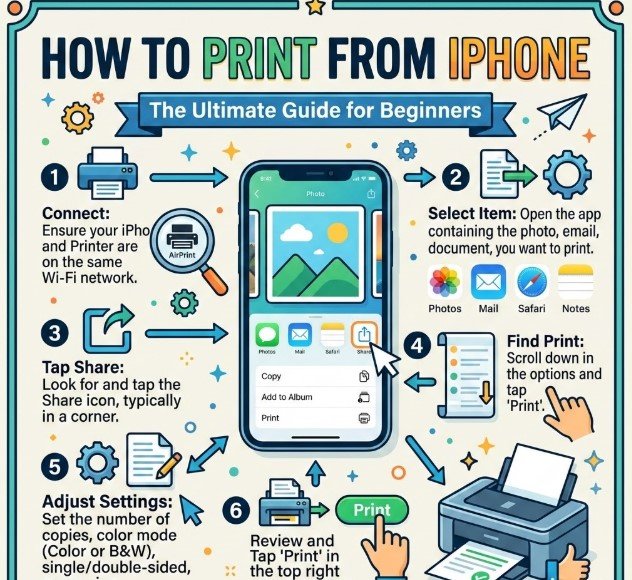
Printing directly from an iPhone has become an essential skill for both professionals and casual users. Understanding how to print from iPhone allows you to quickly produce documents, photos, invoices, tickets, and more without needing a computer.
Apple devices leverage AirPrint technology for seamless printing, but not all printers are compatible. Knowing alternative methods, troubleshooting tips, and printer-specific steps ensures you can print efficiently.
This guide covers every scenario: printing to HP, Epson, Canon, wireless printers, non-AirPrint methods, and even in-store printing at Staples. It also explores troubleshooting, best practices, and advanced tips, making your iPhone printing experience smooth and reliable.
Understanding AirPrint and iPhone Printing Basics
AirPrint is Apple’s built-in printing technology that allows iPhones, iPads, and Macs to print wirelessly to compatible printers without installing drivers. Understanding AirPrint simplifies the printing process and minimizes technical issues.
AirPrint works over Wi-Fi, meaning both your iPhone and printer must be on the same network. It supports printing of documents, emails, web pages, photos, and PDFs. For users without AirPrint-compatible devices, alternative apps and methods are necessary.
Learning AirPrint fundamentals ensures you know why certain printers work automatically while others require additional setup.
Key Points About AirPrint
• AirPrint detects compatible printers automatically when both devices are on the same Wi-Fi network. This eliminates the need for printer drivers, streamlining setup for users.
• AirPrint supports common file formats including PDF, JPEG, PNG, TXT, and most Office files. This broad compatibility ensures documents print accurately.
• Users can choose printer options such as number of copies, page range, and double-sided printing directly from iPhone.
• Security is enhanced because AirPrint does not require external apps or third-party drivers, reducing malware risks.
• AirPrint works seamlessly with most major printer brands including HP, Canon, Epson, and Brother, though older models may require firmware updates.
• Devices running iOS 4.2 or later support AirPrint, making it accessible to most iPhone users today.
Also Read:- How to Turn On Apple Watch: Complete Step-by-Step Guide (All Models)
How to Print from iPhone to HP Printer
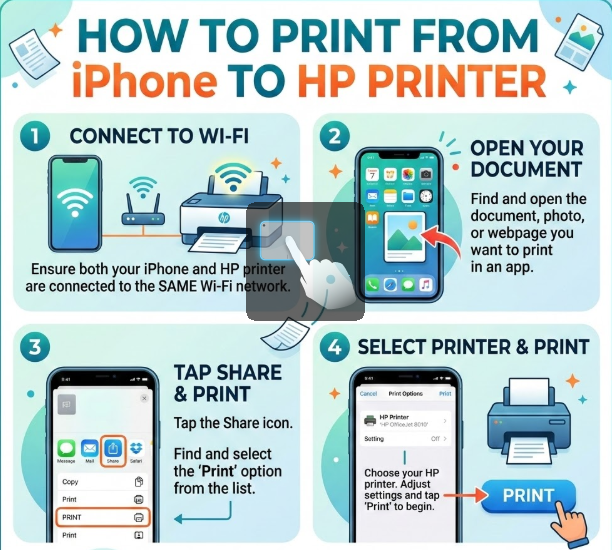
HP printers are widely popular and often fully compatible with AirPrint, simplifying iPhone printing. This section explores methods for both AirPrint and non-AirPrint scenarios.
Printing from iPhone to HP is quick once the devices are networked, and HP also provides the HP Smart app for additional features such as scanning and cloud printing.
Steps to Print to HP Printer
• Ensure the HP printer is powered on, connected to Wi-Fi, and supports AirPrint. Without Wi-Fi or AirPrint capability, printing will fail.
• Open the file, photo, or email you want to print on your iPhone. AirPrint is compatible with Photos, Safari, Mail, Notes, and most apps supporting the share icon.
• Tap the Share icon and select Print. This is the standard pathway for all iOS printing actions.
• Choose the HP printer from the list. If the printer is not visible, check network connectivity and AirPrint compatibility.
• Adjust printing settings such as page range, number of copies, and color options. iPhone provides simple options directly in the print preview.
• Tap Print to send the job. The printer processes the document, and users can monitor print status through iOS notifications or the HP Smart app.
Also Read:- How to Make a Sticker on iPhone: The Complete 2026 Guide
How to Print from iPhone Without AirPrint
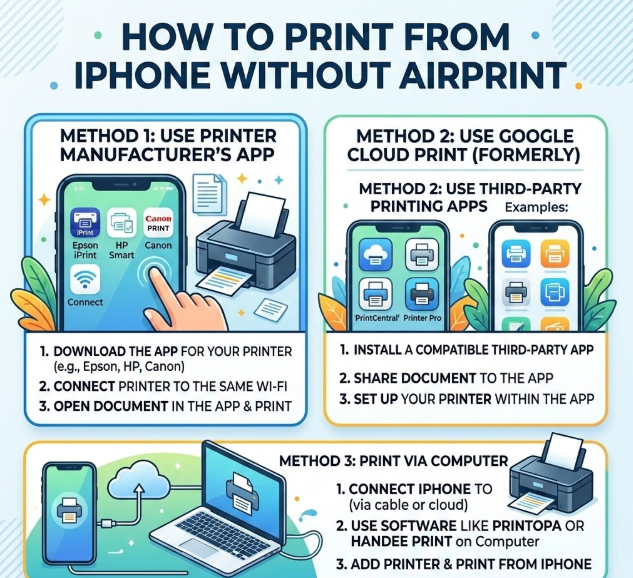
Not all printers support AirPrint, but iPhone users can still print using alternative methods, apps, or wired connections. This approach ensures older or budget printers remain useful.
Third-party apps, such as HP Smart, Epson iPrint, and Printer Pro, act as bridges between iPhone and non-AirPrint printers, offering full printing functionality.
Alternative Printing Methods
• Download the printer manufacturer’s app (HP Smart, Canon Print, Epson iPrint). These apps often allow Wi-Fi and cloud printing without AirPrint.
• Connect your iPhone to the printer via USB using a Lightning-to-USB adapter. This method works for printers supporting direct connections.
• Use Google Cloud Print alternatives or email-to-print functions, where some printers assign a dedicated email address for receiving print jobs.
• Enable Wi-Fi Direct on compatible printers. iPhone can connect directly to the printer network, bypassing the need for a shared Wi-Fi router.
• Utilize third-party apps like Printer Pro by Readdle to print from iPhone to almost any printer model.
• For PDFs and documents, consider exporting to cloud services like Dropbox or Google Drive and printing from a desktop if mobile printing isn’t feasible.
Also Read:- How to Draw a Car: The Complete Step-by-Step Drawing Guide for Beginners and Kids
How to Print from iPhone to Epson Printer
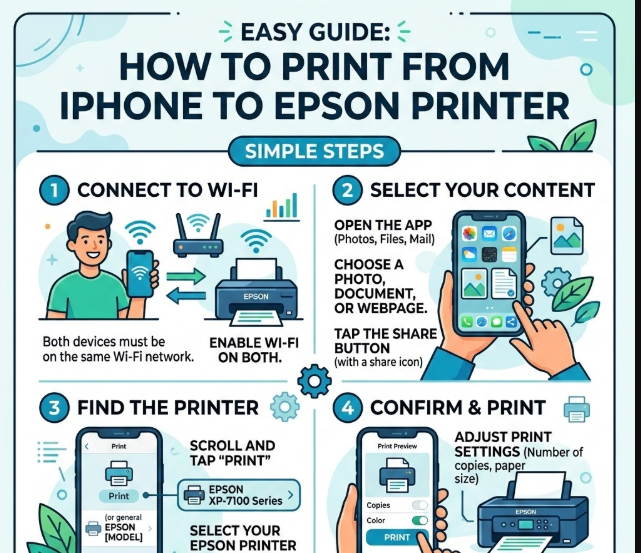
Epson printers offer native AirPrint support on many models, but they also provide the Epson iPrint app for enhanced features. Printing to Epson devices is straightforward with both methods.
Epson iPrint enables printing from iPhone directly to the printer, scanning, and managing print jobs efficiently.
Epson Printing Steps
• Ensure the Epson printer is connected to the same Wi-Fi network as your iPhone. Network alignment is critical for both AirPrint and app-based printing.
• Open the file, photo, or web page you want to print. Tap the Share icon and select Print if using AirPrint.
• If AirPrint is unavailable, download the Epson iPrint app and follow the on-screen instructions to connect the printer.
• Choose print options such as paper size, color, number of copies, and double-sided printing. Epson iPrint offers advanced features like borderless photo printing.
• Send the print job and monitor status within the app or iOS notifications.
• For troubleshooting, check firmware updates, Wi-Fi connectivity, and restart both devices if the printer is unresponsive.
Also Read:-How to Cook White Rice: The Complete Step-by-Step Guide for Perfect Results
How to Print from iPhone at Staples
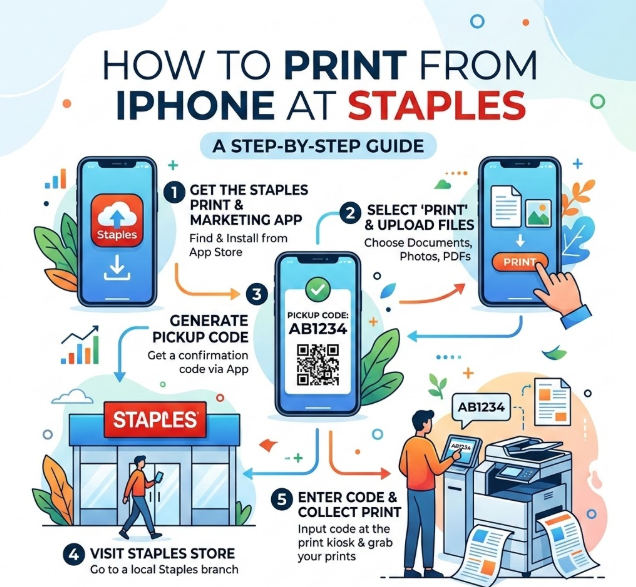
Printing from iPhone at Staples is ideal for users without a home printer. Staples supports both AirPrint and app-based submissions through their print service.
Users can print documents, photos, and even large projects directly from iPhone using the Staples Print & Go service.
Steps for Staples Printing
• Download the Staples Print & Go app from the App Store. The app supports document uploads and print job customization.
• Open the file or photo on your iPhone and use the Share option to select Staples Print & Go.
• Choose the Staples store location for pickup, print size, and paper type. Options include color, black & white, glossy, and standard paper.
• Confirm the job and submit the order. Staples provides a confirmation and estimated pickup time.
• Make payment in-app or at the store, depending on store policy.
• Pickup the printed materials at the selected store. Staff can assist with larger or specialty print projects.
Also Read:-How to Rent a Car: Comprehensive Guide for Modern Travelers
How to Print from iPhone to Canon Printer
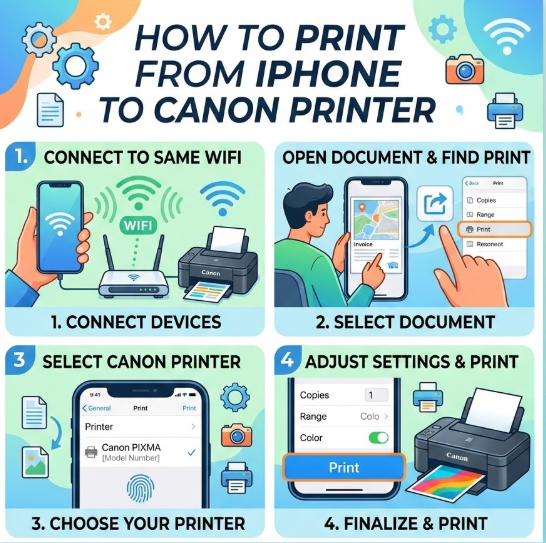
Canon printers often feature both AirPrint and Canon PRINT Inkjet/SELPHY apps for full printing control from iPhone. Understanding app features can enhance your printing capabilities.
Users can print photos, documents, emails, and web pages directly with customizable print settings.
Canon Printing Steps
• Confirm that the Canon printer is powered on and connected to Wi-Fi. Firmware updates may be required for AirPrint support.
• Open the document, image, or email on your iPhone. Tap Share → Print.
• Select the Canon printer from the detected AirPrint devices.
• Adjust settings including page range, layout, number of copies, and color mode. Canon apps may offer photo-specific options like glossy or matte finishes.
• For non-AirPrint models, download the Canon PRINT Inkjet/SELPHY app and connect your iPhone to the printer following the guided instructions.
• Send the print job and monitor printing status directly from the iPhone or app notifications.
Also Read:- How to Make Slime: The Ultimate DIY Slime Guide for Beginners and Experts
How to Print from iPhone to Wireless Printer
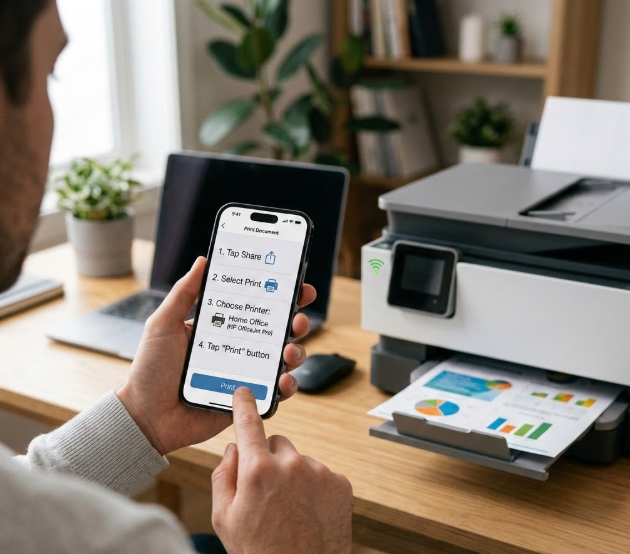
Wireless printers allow printing from iPhone without physical connections. Wi-Fi-enabled printers are the most convenient method for mobile printing.
Ensuring both devices are on the same wireless network is essential for smooth communication.
Wireless Printing Steps
• Verify that your wireless printer is connected to the home or office Wi-Fi network. Check router and printer settings to confirm network connection.
• Open the file or photo on iPhone and tap Share → Print.
• Select the wireless printer from the AirPrint list or app-based options.
• Configure print options: number of copies, double-sided, page selection, and color. Wireless apps may also allow scheduled or delayed printing.
• Tap Print and monitor progress through iOS or printer app notifications.
• Troubleshoot issues by restarting devices, checking Wi-Fi signals, and updating printer firmware or iOS version.
Also Read:- How to Strip Paint from Wood: The Complete Expert Guide for Safe, Effective Results
Common iPhone Printing Mistakes to Avoid
• Attempting AirPrint on incompatible printers.
• Using cellular data instead of Wi-Fi for AirPrint jobs.
• Ignoring printer firmware updates.
• Forgetting to check paper size or type.
• Printing large files without verifying printer memory limits.
• Overlooking app permissions for third-party printing apps.
Also Read:- How to Strengthen Wrists: The Complete Expert Guide to Power, Stability, and Injury Prevention
Conclusion
Mastering how to print from iPhone enhances productivity for both personal and professional tasks. Whether printing at home to HP, Epson, Canon, or wireless printers, or using in-store solutions like Staples, iPhone printing is fast, efficient, and flexible.
AirPrint simplifies printing for compatible devices, while apps and alternative methods ensure older or non-compatible printers remain functional. Following these guidelines ensures high-quality prints, smooth connectivity, and minimal errors.
By understanding settings, printer options, and troubleshooting strategies, iPhone users can confidently print any document or photo, anywhere.
FAQs
Can I print from iPhone without Wi-Fi?
Yes, using Wi-Fi Direct or USB adapters for compatible printers.
Do all HP printers support AirPrint?
Most recent models do, but check HP’s official compatibility list.
Can I print photos from iPhone to Staples?
Yes, using the Staples Print & Go app or in-store kiosks.
Which app works for non-AirPrint Epson printers?
The Epson iPrint app enables full printing functionality.
How do I check if my printer is wireless-compatible?
Refer to the printer’s manual or manufacturer’s website for Wi-Fi and AirPrint compatibility.
Can I print documents from iPhone cloud storage?
Yes, most printer apps and AirPrint support files from iCloud, Dropbox, Google Drive, and OneDrive.
For More Visit Alaikas.com